How to block apps on iPhone: every method compared
Screen Time, Focus modes, app blockers and physical blockers: how each way of blocking apps on iPhone works, how easy it is to get round, and which to use.
There are at least six ways to block an app on your iPhone. They range from “hides the icon” to “you’ll have to get up and walk to the kitchen”. This guide covers how each one works, how to set it up, and, honestly, how easy it is to get round.
One thing first: nothing on your own iPhone is completely unbreakable, and nothing should be. Apple always leaves the owner a way back in. The useful question is how much effort getting round each method takes. The more effort it takes, the more often you’ll leave the app alone.
The quick comparison
| Method | Cost | How easy to get round | Best for |
|---|---|---|---|
| Screen Time allowances and schedules | Free | Very easy without a passcode; easy if you set the passcode yourself | Seeing your habits, gentle limits, children’s phones |
| Focus modes | Free | Very easy: apps are hidden, not blocked | Fewer notifications and a calmer Home Screen |
| Lock or hide an app | Free | Very easy: Face ID opens it | Privacy, and a moment’s pause |
| Deleting the app | Free | Moderate: reinstalling takes a minute, and the website still works | Apps you truly don’t need |
| App blockers | Free, or a subscription for strict features | Varies: strict modes help, but the way out is still on your phone | Timed focus sessions, blocking on several devices |
| Physical blockers | One-off, from about £30 | Hard: you have to walk to the card or device | People who’ve tried everything else |
1. Screen Time: Time Allowances and Screen Time Schedule
Screen Time is built into every iPhone. In iOS 27, Apple renamed its two main tools: App Limits became Time Allowances, and Downtime became Screen Time Schedule.
Set a daily allowance
- Open Settings and tap Screen Time.
- Tap Time Allowances. If asked, turn on App & Website Activity.
- Tap Manage Categories, add a category such as Social Media, and set how much time it gets each day.
Set a schedule
- In Settings, tap Screen Time, then Screen Time Schedule, and turn on Schedule.
- Tap Add Schedule, choose the days, and create time windows such as Work or Evening.
- For each window, choose which allowance categories are available.
On iOS 26 or earlier, you’ll find the same ideas under App Limits and Downtime in Settings, then Screen Time.
How easy is it to get round?
When you hit a limit, your iPhone offers to let you ignore it. A Screen Time passcode (Settings, then Screen Time, then Passcode & Management, then Lock Screen Time Settings) puts a code in the way. If you set it yourself, you know it. Ask someone you trust to set it if you want it to hold.
Good for: understanding your habits, and limits that a parent controls. Weak at: stopping adults who know their own passcode.
2. Focus modes
Focus modes (Settings, then Focus) silence notifications from chosen apps and people, and let you show only certain Home Screen pages while a Focus is on. They work well for cutting interruptions. They don’t block anything: hidden apps are still a search away.
Good for: fewer pings and a quieter Home Screen. Weak at: stopping you opening an app on purpose.
3. Lock or hide an app
Since iOS 18 you can touch and hold an app’s icon and choose Require Face ID. The app then needs Face ID, Touch ID or your passcode to open. Hide and Require Face ID also moves it into a hidden folder.
This was designed for privacy, not self-control: your face unlocks it in a second. It does add a small pause, and out of sight helps a little.
4. Delete the app
Underrated. If an app does nothing for you, deleting it is the cleanest block there is. Two things to know:
- Reinstalling from the App Store takes about a minute, so on a bad evening it may not hold.
- Most social apps also work in Safari. Block the website too, or you’ve only moved the habit. Our guide to blocking TikTok on iPhone shows how.
A middle ground many people like is to delete an app on weekdays and reinstall it at the weekend.
5. App blockers
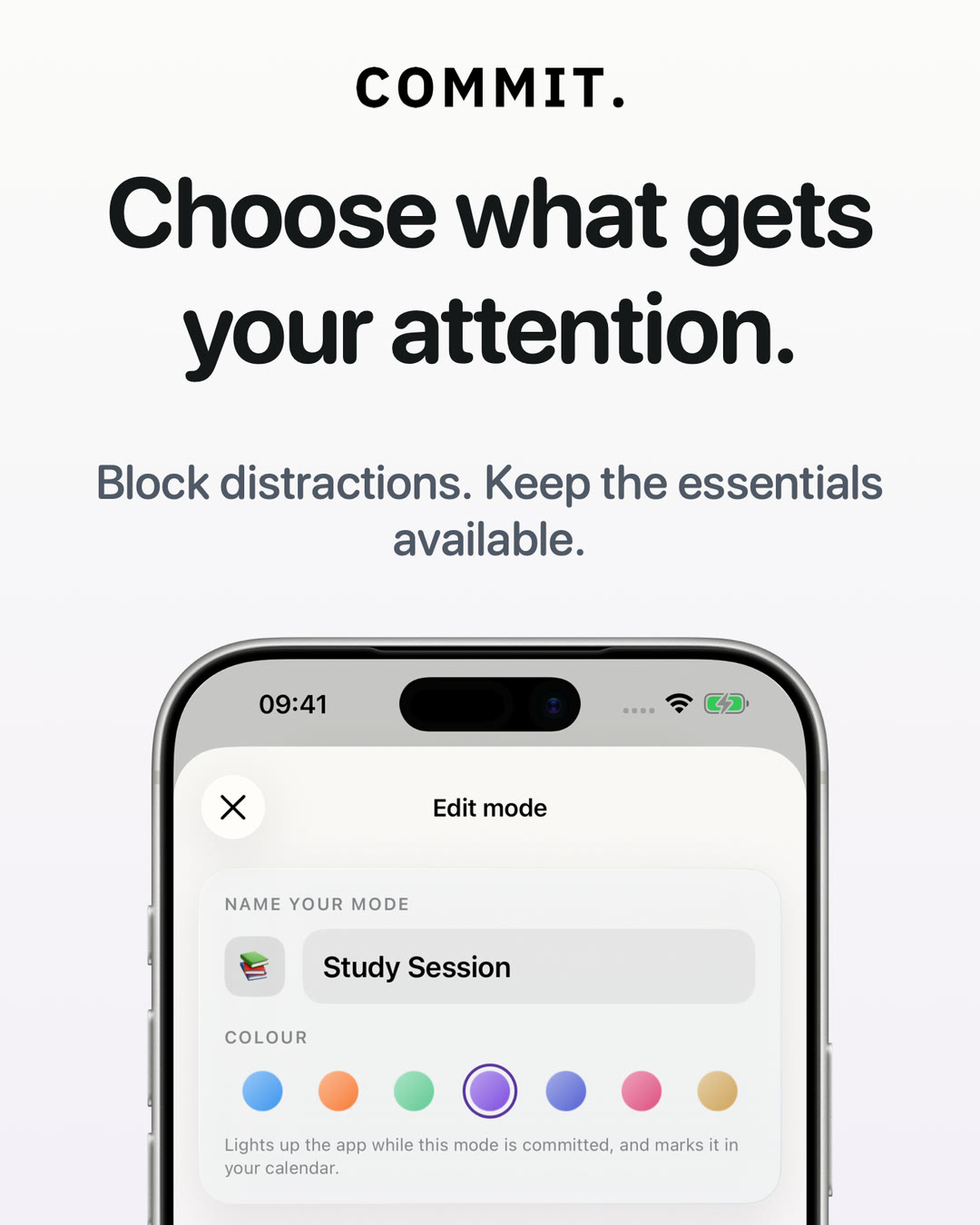
Apps such as Opal and one sec use Apple’s Screen Time framework to block apps and websites, with extras on top. Some add a pause or breathing exercise before an app opens. Others run focus timers, schedules and streaks, or have strict modes that stop you switching them off mid-session.
They’re a real step up from Screen Time limits because the way out isn’t a single tap. But the way out is still on the phone in your hand. Many charge a subscription for their strictest features.
Good for: timed sessions, and blocking on a Mac or Android phone too. Weak at: late-night moments when you’ll happily wait out a pause screen.
6. Physical blockers
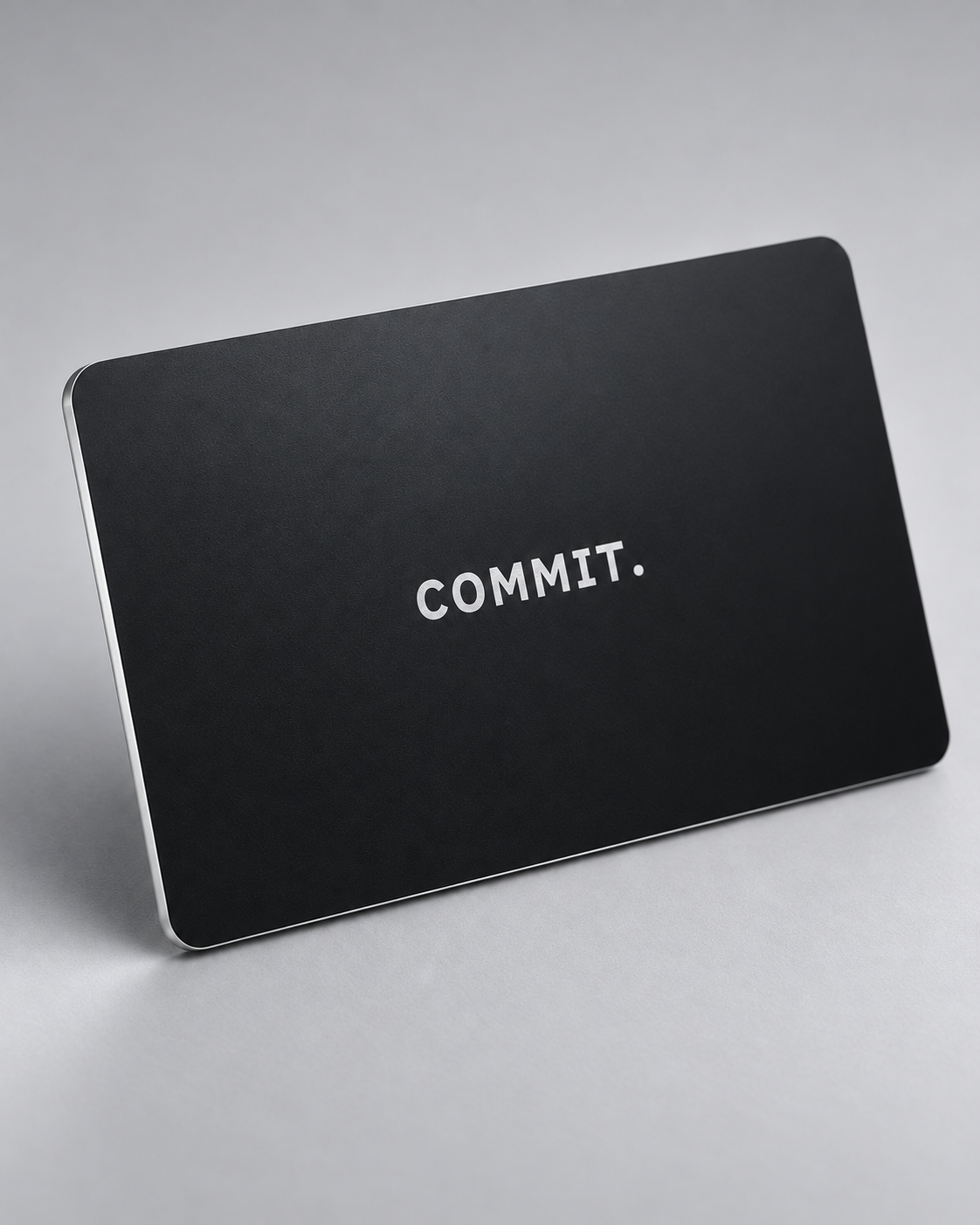
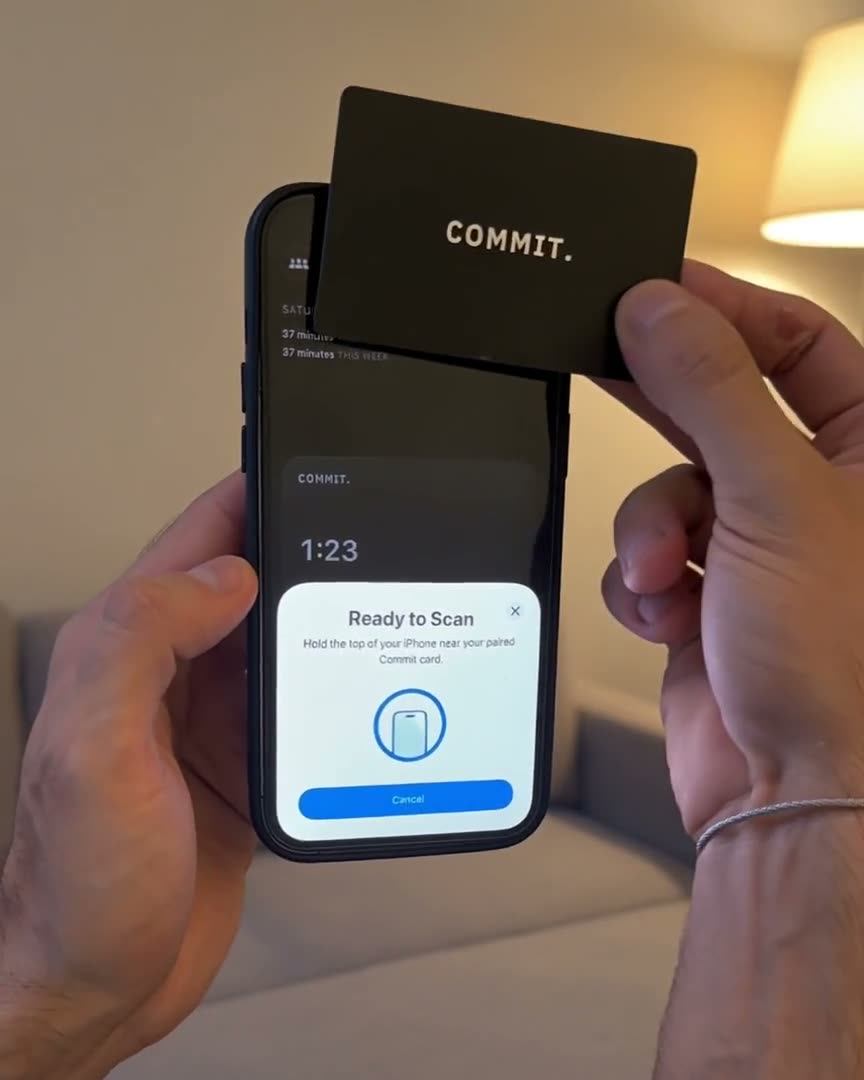
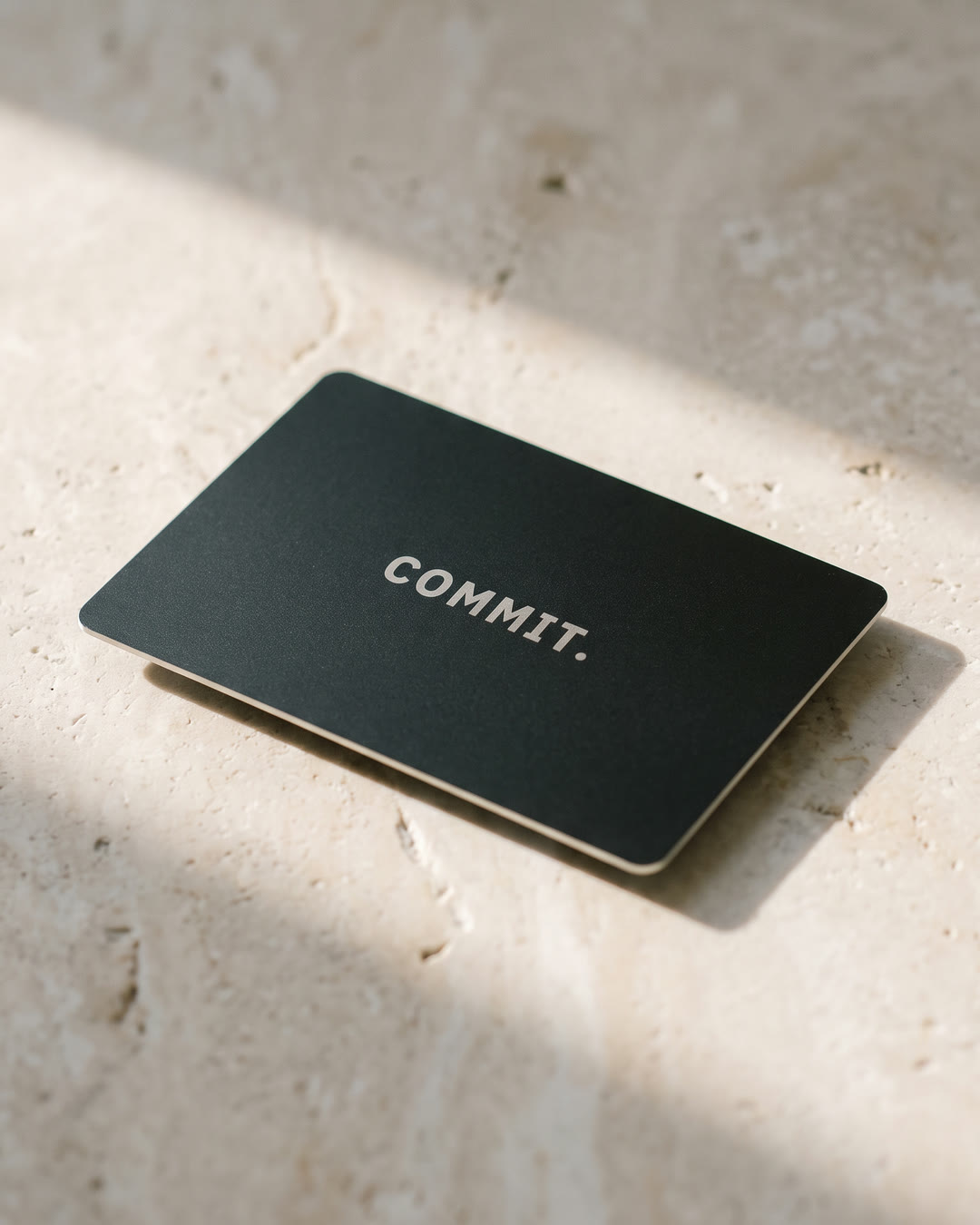
Physical blockers, including Commit and Brick, pair an app with an object you leave somewhere else. You block your apps from the phone, and they stay blocked until you go and tap your phone on the object.
That’s a different kind of barrier. Ignoring a limit takes one tap and no thought. Getting up and walking to the hallway takes ten seconds, and usually the urge has gone by then.
With Commit, you choose your apps, hold the card on screen to start, and scan the real card to finish. It costs £29.99 once, the app is free, and it includes a Wake alarm that stops only when you scan the card. Read how it compares with Brick.
Good for: people who’ve tried limits and blockers and keep getting round them. Weak at: anyone who needs everything to happen on one device. You also have to keep track of the card, and there are emergency releases for when you can’t.
Tips that make any method work better
- Block for moments, not just totals. The first hour at your desk and the last hour in bed matter more than your daily average.
- Keep the essentials. Leave Phone, Messages, Maps and your bank available, so you never need to break a block for a good reason.
- Block the browser version too, or the habit moves to Safari.
- Start smaller than you think. A two-hour block you keep beats an all-day block you break by lunchtime.
Questions
- What’s the strictest way to block apps on iPhone?
- Deleting the app, or using a blocker where ending a session takes real effort, such as a physical blocker you leave in another room. Screen Time limits you set yourself are the easiest to get round, because you can ignore them or you know the passcode.
- Can I block websites as well as apps?
- Yes. Screen Time can limit websites, and most app blockers, including Commit, can block websites in Safari as well as apps. Blocking only the app leaves the website version one search away.
- Is there a way to block apps that can’t be undone?
- Not on your own iPhone, and that’s deliberate. Apple always lets the owner of a phone remove an app’s Screen Time access in Settings. What you can do is make undoing a block slow and inconvenient, which is enough for most people.
- Does blocking apps work on older iPhones?
- Screen Time works on every recent version of iOS, though Apple renamed App Limits and Downtime in iOS 27. Commit works on iOS 17 or later.