Commit vs iPhone Screen Time
Screen Time is free and built in, so why pay for anything else? An honest look at where Screen Time works, where it doesn’t, and what Commit adds.
The short answer
Screen Time is very good at showing you how you use your phone, and fine for gentle limits. Its weakness is that the person setting the limits is the same person who can switch them off, one tap away from the app they’re trying to avoid.
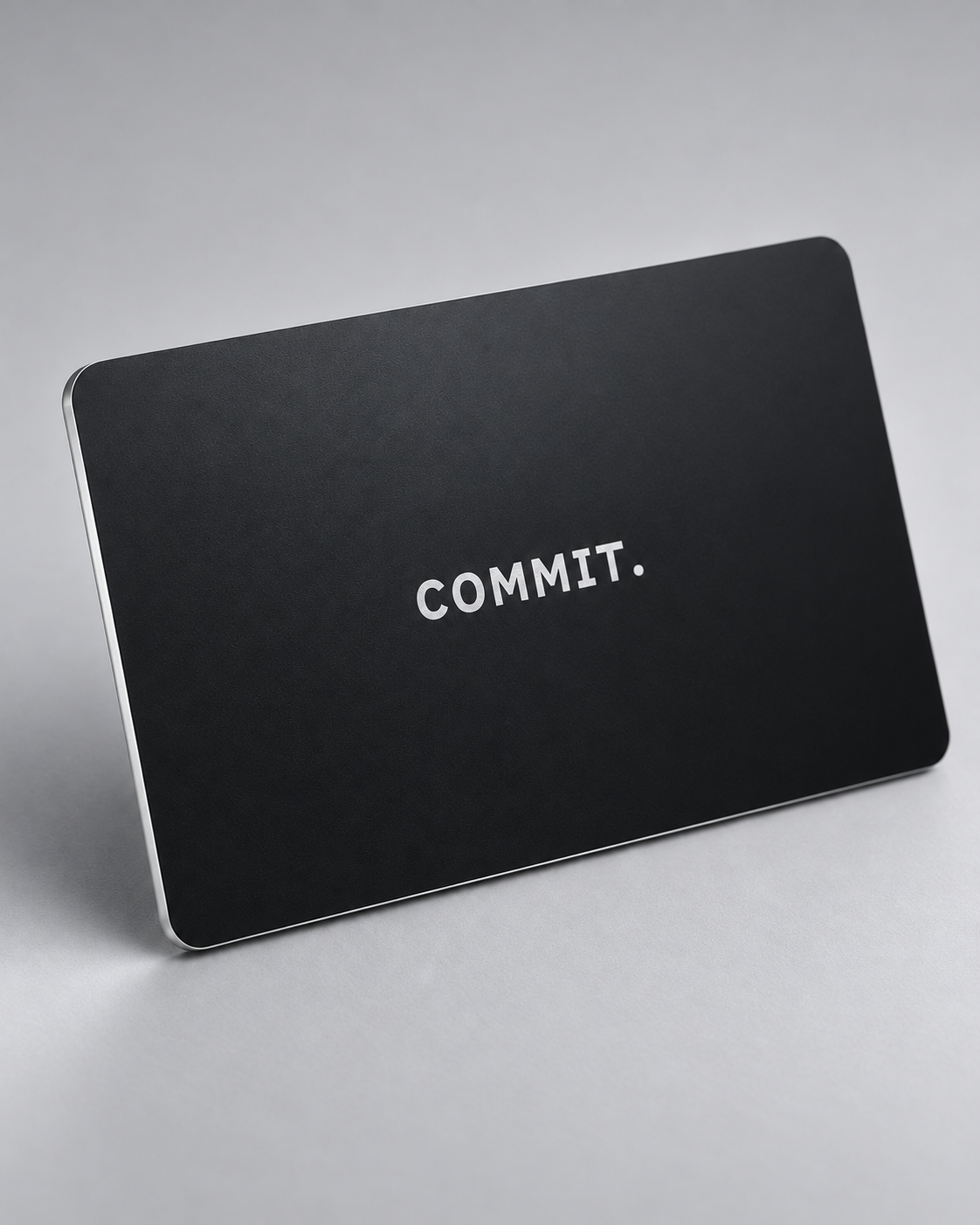
Commit keeps the same Apple blocking underneath, but puts the off switch in another room.
What Screen Time does well
It’s free, it’s already on your iPhone, and it’s made by Apple, so it works deep in the system. In iOS 27, Apple reorganised it around two tools:
- Time Allowances (called App Limits before iOS 27) set how long you can spend in categories like Social Media, Entertainment and Games each day.
- Screen Time Schedule (called Downtime before iOS 27) sets which apps you can use at different times, with separate windows for weekdays and weekends.
It also has Always Allowed for apps and people you never want blocked, content restrictions, and detailed weekly reports, including how often you pick your phone up. With Share Across Devices turned on and the same Apple Account, your settings and reports can sync to your iPad and Mac. The latest features need version 27 or later on all devices.
For children, it’s a strong tool, because a parent holds the passcode. For adults managing their own phone, there’s a gap.
Why Screen Time limits don’t stick
When you hit a limit, your iPhone tells you, and offers to let you carry on. Most people have tapped “Ignore Limit” more times than they’d like to admit. It’s not a lack of willpower. The block appears at exactly the moment you want the app most, and the way past it is one tap away.
The usual fix is a Screen Time passcode (Settings, then Screen Time, then Passcode & Management). But if you set it yourself, you know it. Typing four digits isn’t much of a barrier when you’re tired and bored.
Asking a partner or friend to set the passcode works better, but now you need them whenever your plans change. If Screen Time Passcode Recovery was set up, you can reset the code using the Apple Account used for recovery.
Limits count minutes. Most scrolling happens in moments.
Time Allowances give you a daily budget. That helps if your problem is the total. But for most people the problem is specific moments: the first hour of work, revision after dinner, the half hour in bed before sleep. A 45-minute allowance can be gone by 9am, or saved up for 1am.
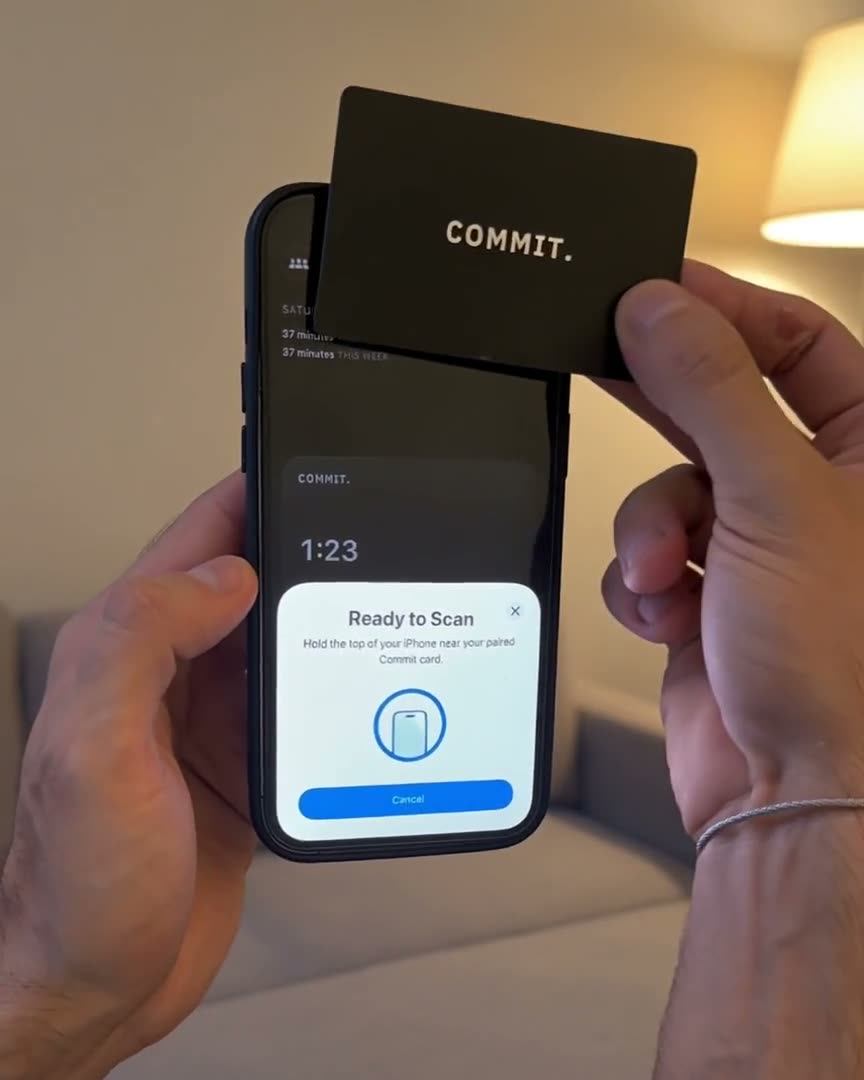
Commit is built around sessions. You decide that the next two hours are for work, hold to start, and those apps are blocked until you go and scan your card. Routines start sessions on a schedule, and you can plan one-off sessions straight onto your calendar.
Side by side
| Commit | Screen Time | |
|---|---|---|
| Price | Free app. Card £29.99 once. Free UK delivery | Free, built into iOS |
| How a block ends | Scan your card, wait for a set end time, or use an emergency release | Tap to ignore the limit, or enter the Screen Time passcode |
| Blocks apps and websites | Yes | Yes |
| Daily time budgets | No. Commit blocks for sessions you choose | Yes, Time Allowances by category |
| Scheduled blocking | Repeating routines, plus one-off sessions on your calendar | Screen Time Schedule |
| Stopping workarounds | Optional Strict Mode stops deleting apps, installing apps and changing the clock during a session | Passcode on Screen Time settings |
| Alarm | Wake: rings until you scan the card (iOS 26 or later) | No |
| With friends | Group Commits for up to 20 people | No |
| Reports | Time protected, streaks and phone use | Detailed usage, pickups and notifications |
| Devices | iPhone | iPhone, iPad and Mac |
Use them together
This isn’t really either/or. Commit blocks apps through the same Apple framework that Screen Time uses, and it doesn’t change your Screen Time settings. A sensible setup:
- Keep Screen Time on for the weekly report and any content restrictions.
- Add your most important contacts and apps, like Phone, Messages and Maps, to Always Allowed for Screen Time’s limits. Also leave essential apps unblocked in Commit.
- Use Commit for the times that matter: a work routine on weekday mornings, a revision session after dinner, Night Protection before your alarm.
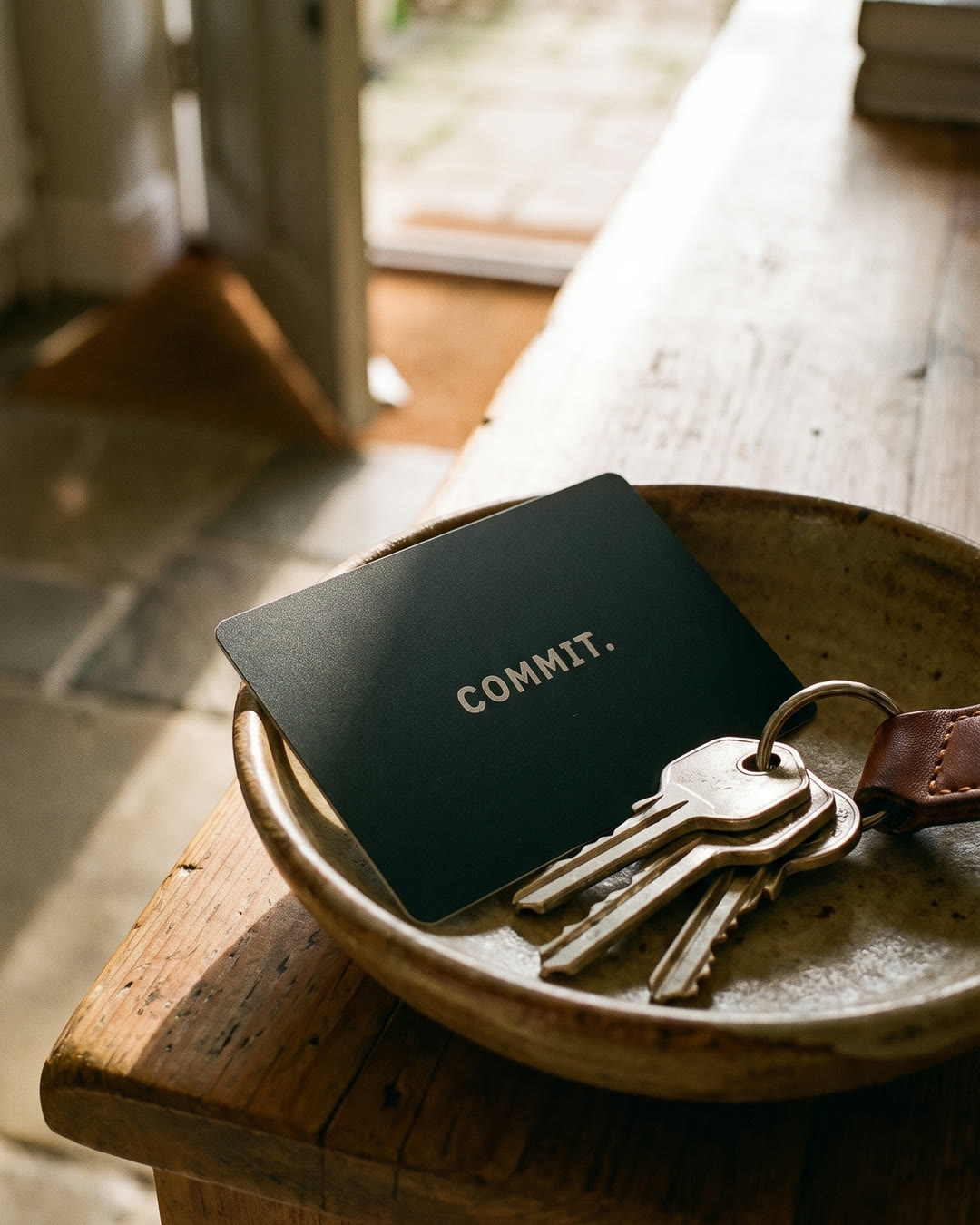
- Leave the card somewhere that means getting up: the hallway, the kitchen, by the front door.
When Screen Time is enough
If you rarely tap Ignore Limit, or you mainly want to understand your habits, you don’t need anything else. Screen Time’s reports are excellent, and setting a passcode with someone you trust can make the limits firm.
If you’ve set limits, ignored them, and set them again, the settings aren’t the problem. The way past them is too easy, and that’s what a card in the next room changes.
Questions
- Does Commit replace Screen Time?
- No. Commit uses Apple’s Screen Time framework to block apps, so keep Screen Time turned on. You can carry on using its weekly reports and content restrictions alongside Commit.
- Can’t I just ask someone else to set my Screen Time passcode?
- You can, and it works better than setting it yourself. The catch is that you need that person every time you want to change a limit, and Screen Time Passcode Recovery can let you reset the code with your Apple Account.
- Do I need iOS 27 for Commit?
- No. Commit works on iPhones running iOS 17 or later. The Wake alarm needs iOS 26 or later.
- Will ending a Commit remove my Screen Time limits?
- No. Commit only removes the blocks it set. Any limits or schedules you’ve set in Screen Time stay as they are.